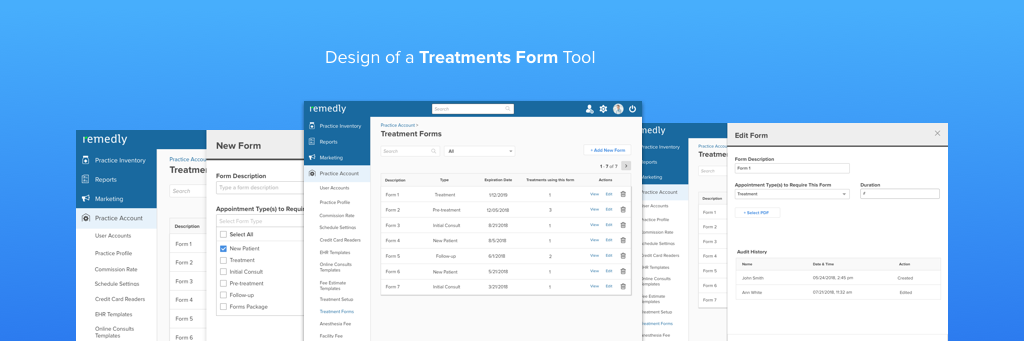
PROJECT | Medical Treatment Forms
ROLE | UX Designer
DURATION | Three Weeks
Description
Consent to treatment is the principle that a person must give permission before they receive any type of medical treatment, test or examination. The best way for medical provider to obtain patient’s consent is to ask a patient to sign a Treatment form. Treatment form content, life span etc. depends on specific procedures, government regulations etc.
Required Functionalities
Each medical practice should have ability to create, modify, replace, archive and delete Treatment forms based on their needs.
Set a life span on each form (usually 6 months) and be notified by the system when form is expired.
Generate the same (or similar) form with new expiration date and attach it to patient history
Current limitations
As of now, requirements 1-3 are not supported and providers in most cases have to email forms as a word or pdf files to Customer Success Team, who manually customizes files and upload them, as pdf, to the client’s portal.
Current Implementation and useflows
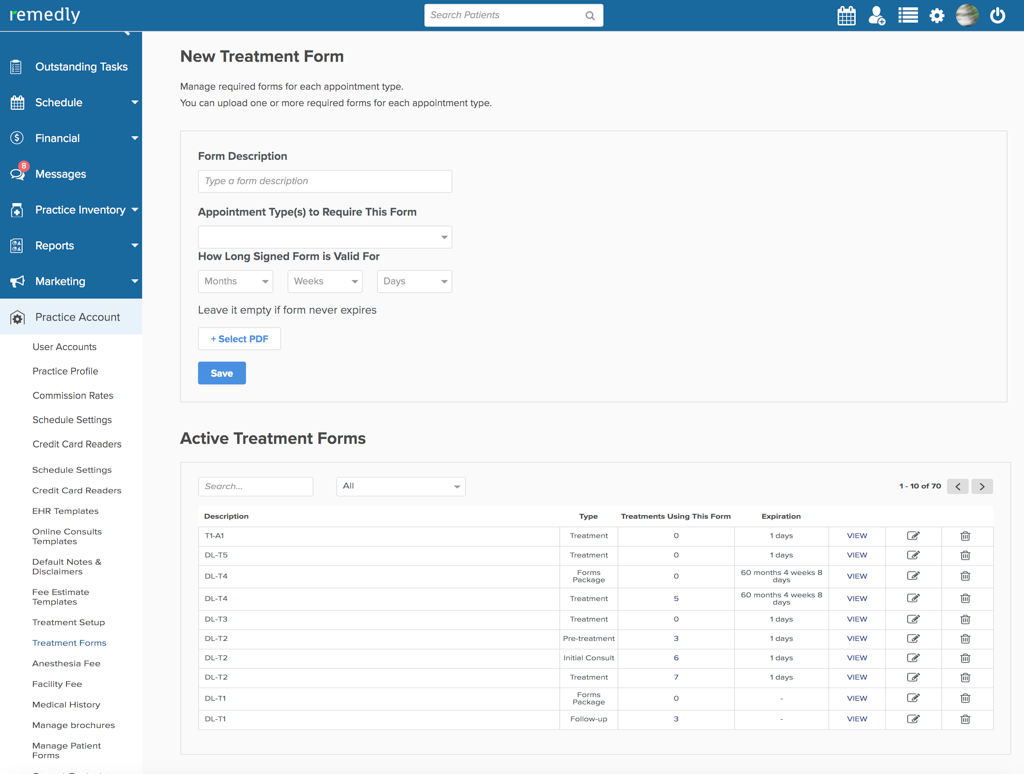
CURRENT DESIGN
USERCASES
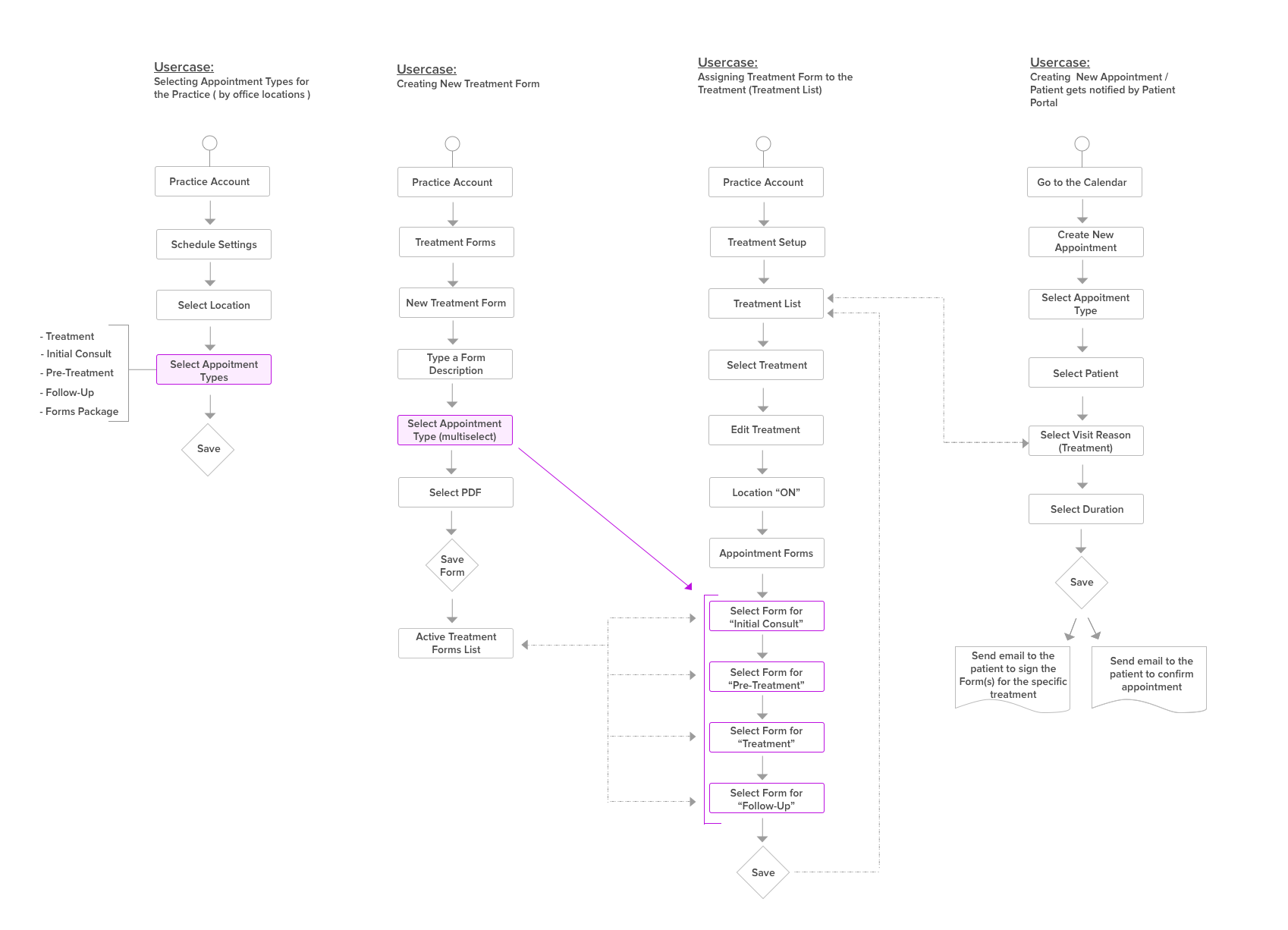
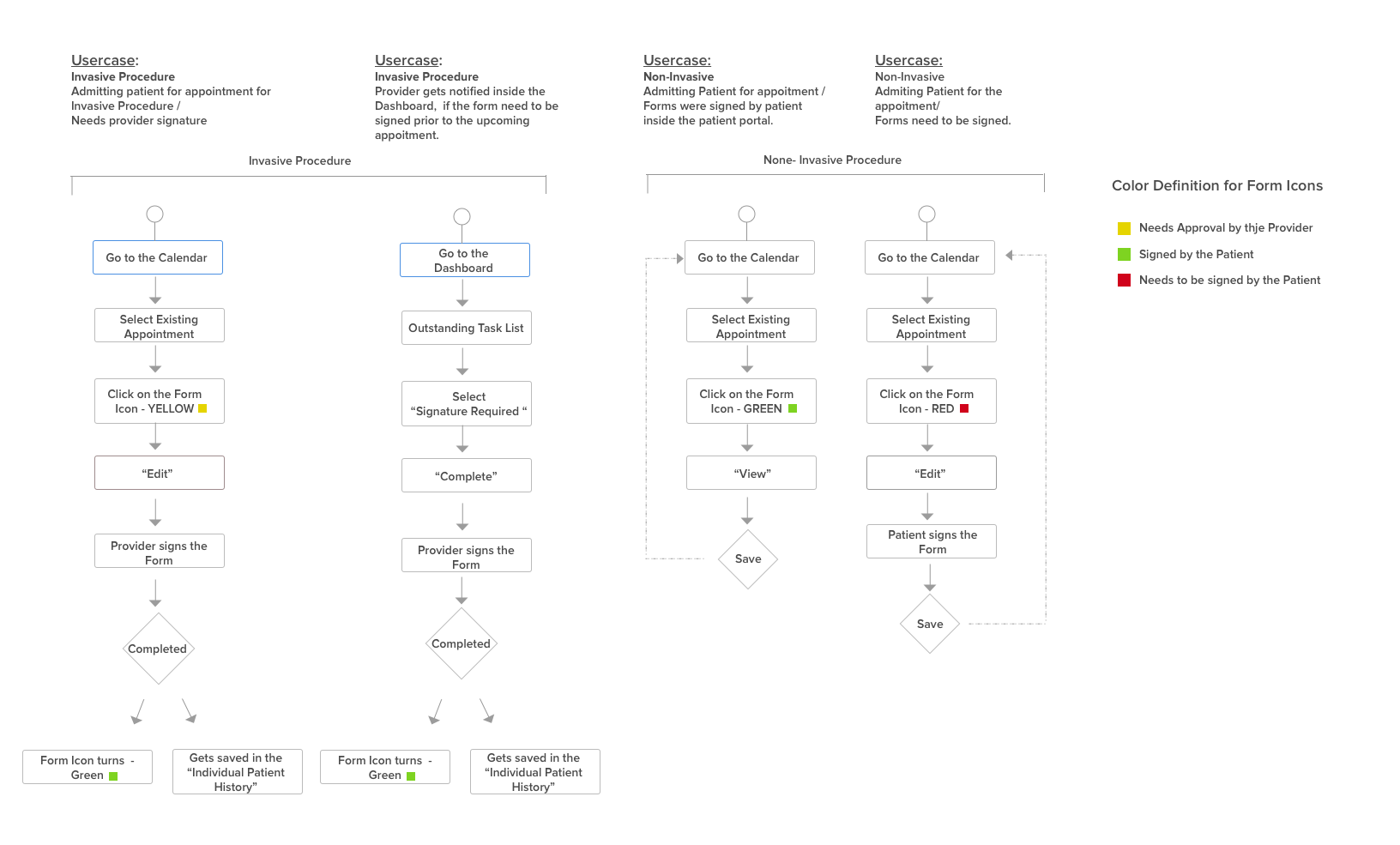
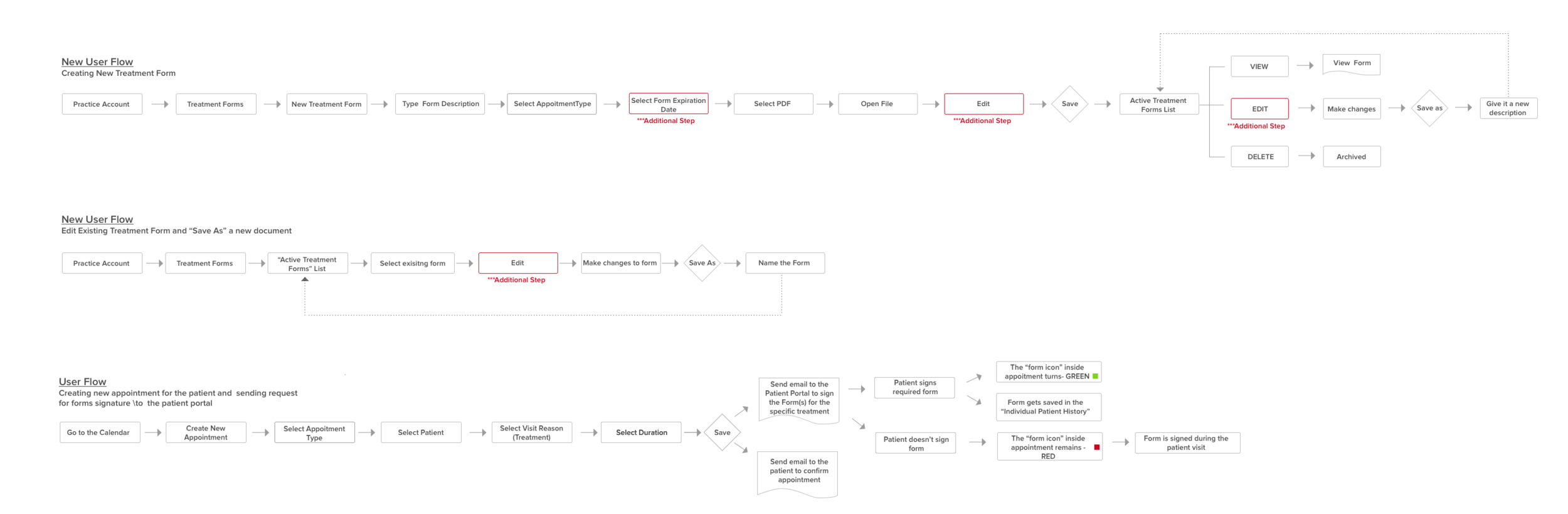
USERFLOWS
Findings
There are two types of treatments - “Surgical" and "Non-surgical." Treatment List can be customized inside the “Treatment Setup” window.
Surgical - requires both, provider and patient signature on file.
Non-surgical - requires only patient signature on fileIf the treatment is non-surgical and the patient forms were signed, the icon inside patient appointment in the calendar turns - GREEN.If the treatment is non-surgical and the patient forms were NOT signed, the icon inside patient appointment in the calendar turns - RED.
If the treatment is surgical and forms were NOT signed by the provider, the icon inside patient appointment turns - YELLOW. Provider gets notification in the Dashboard for the forms to be signed.
If the forms are not signed by the patient, they are reviewed and signed at the office before or during the visit. Once the forms are signed, they are saved in the Patient History Chart for the future record.
Forms can be assigned to specific treatment and appointment type inside the “Treatment Setup” window.
The user creates treatment list in the “Practice Account” > ”Treatment Setup”.
Even users can upload forms themselves, in but 98% of a time they send their forms (in word or pdf doc file) to the Customer Support Team who customizes forms for each appointment type and uploads them to the client portal.
Once forms are saved in the system “Treatment Active List”, the user assigns each form to specific treatment and appointment type. “Practice Account” > ”Treatment Setup” > EDIT
When appointment is scheduled for the patient, based on the selected treatment forms are automatically sent to the Patient Portal for required signature. Upon patient's arrival to the office, the staff and the provider are notified, if forms were signed or need to be signed.
Recomendations
A. When creating a New Form the user needs a way to assign the form to multiple Appointment Types. (Treatment, Initial Consult, Pre-Treatment, and Follow-Up.). As of now, only one type of appointment can be selected and process should be repeated for each appointment type.
Recommendation: Add multi-select option to drop down menu in Appointment Type. “Practice Account” > ”Treatment Forms” > ”Form Description” > ”Select Appointment Type”. Once the form is saved and appears in the "Active Treatment Forms" List, the user can assign it to a specific treatment in the Treatment Setup.B. There is no option to select “New Patient Form” in the “ Appointment Type” dropdown > ”Treatment Forms” settings
Recommendation: Add "New Patient Forms" option to the drop-down selection. It should read as: (New Patient Forms, Treatment, Initial Consult, Pre-Treatment, and Follow-Up.)C. Can't sign the same form (e.g. expired) more than once - it replaces/deletes the old form.
Recommendation:Add field to forms set up for user to select how long signed form is valid for. (This will be in treatment forms section when uploading. Can be the same for all appointment types.) The start date of the timeframe should be the date the form was signed, not the date of the appointment. Intervals practice can choose will be weeks, months, or years, and they should be able to type in the number (e.g. 6 months). There should be an option to choose that "Form Never Expires". Should be able to upload the form without choosing a time frame.
This will apply to new forms shouldn’t not affect existing forms
If a new appointment has an associated form that was previously signed, AND the date of the appointment is within the valid assigned timeframe, the clipboard will stay green. New forms will not populate in the patient portal to be signed. If the user clicks on the green clipboard, they will be taken to the original signed forms.
If a new appointment has an associated form that was signed, AND the date of the appointment is OUTSIDE of the assigned valid timeframe, the clipboard will be red. New forms will populate in the patient portal to be signed. If the user clicks on the red clipboard, they will be taken to new forms to be signed.
If no timeframe is assigned, the default setting will be that a new form needs to be signed each time.
If a form was previously signed and shows as green, but the user needs the patient to sign again, they need to be able to manually select the new form and assign it to the appointment within Individual Patient History. When a form is assigned to an appointment, the clipboard needs to turn red and the forms need to show up on the patient portal for the patient to sign. The previous signed forms need to be preserved and available in the patient's chart.
D. Sometime medical practices get an updated version of the existing forms that needs to be updated in the system and applied to all of the appointments/ treatments moving forward.
Recommendation: Add new button "Edit" for each treatment inside “Active Treatment Forms” List. When the form is edited or changed, the old form is deleted (archived) but remains in the Patient History for the future records. At the same time “form icon" in the appointment get changed from GREEN to RED; notifying staff and provider about required new patient signature during the next patient visit.
RECOMMENDATIONS
Create “New Form” Screen
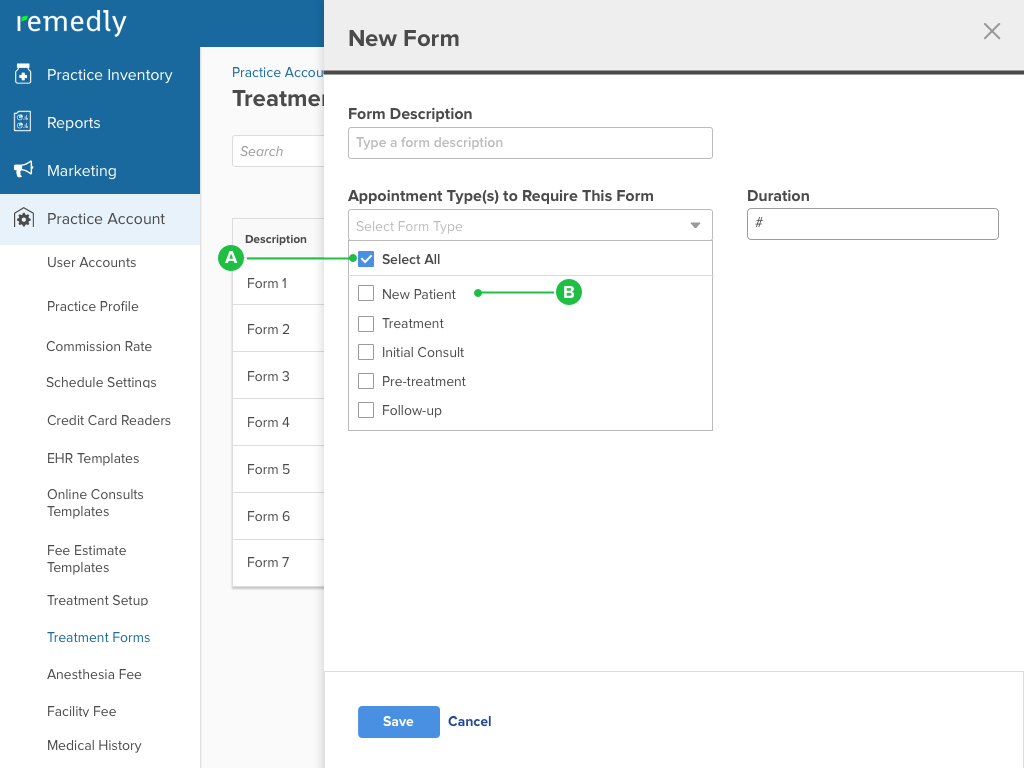
- Add multi-select option to drop down menu in Appointment Type.
- Add "New Patient Forms" option to the drop-down selection.
Treatment Forms “Call for Action”
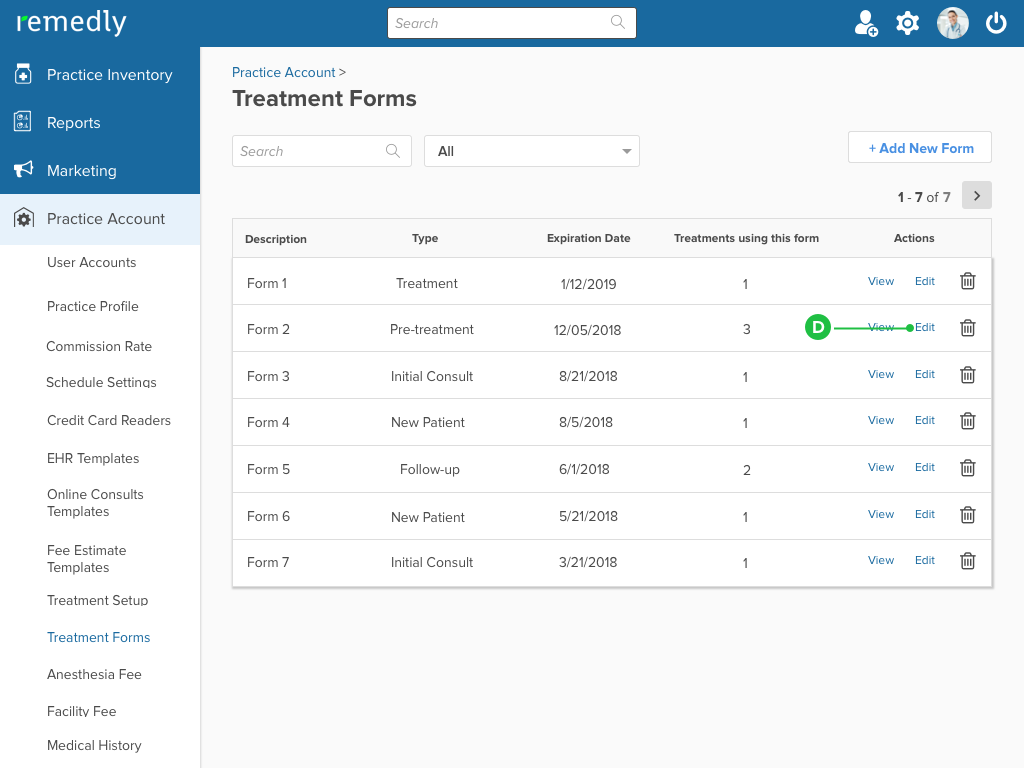
- Add new button "Edit" for each treatment inside “Active Treatment Forms” List.
Create “New Form” Screen
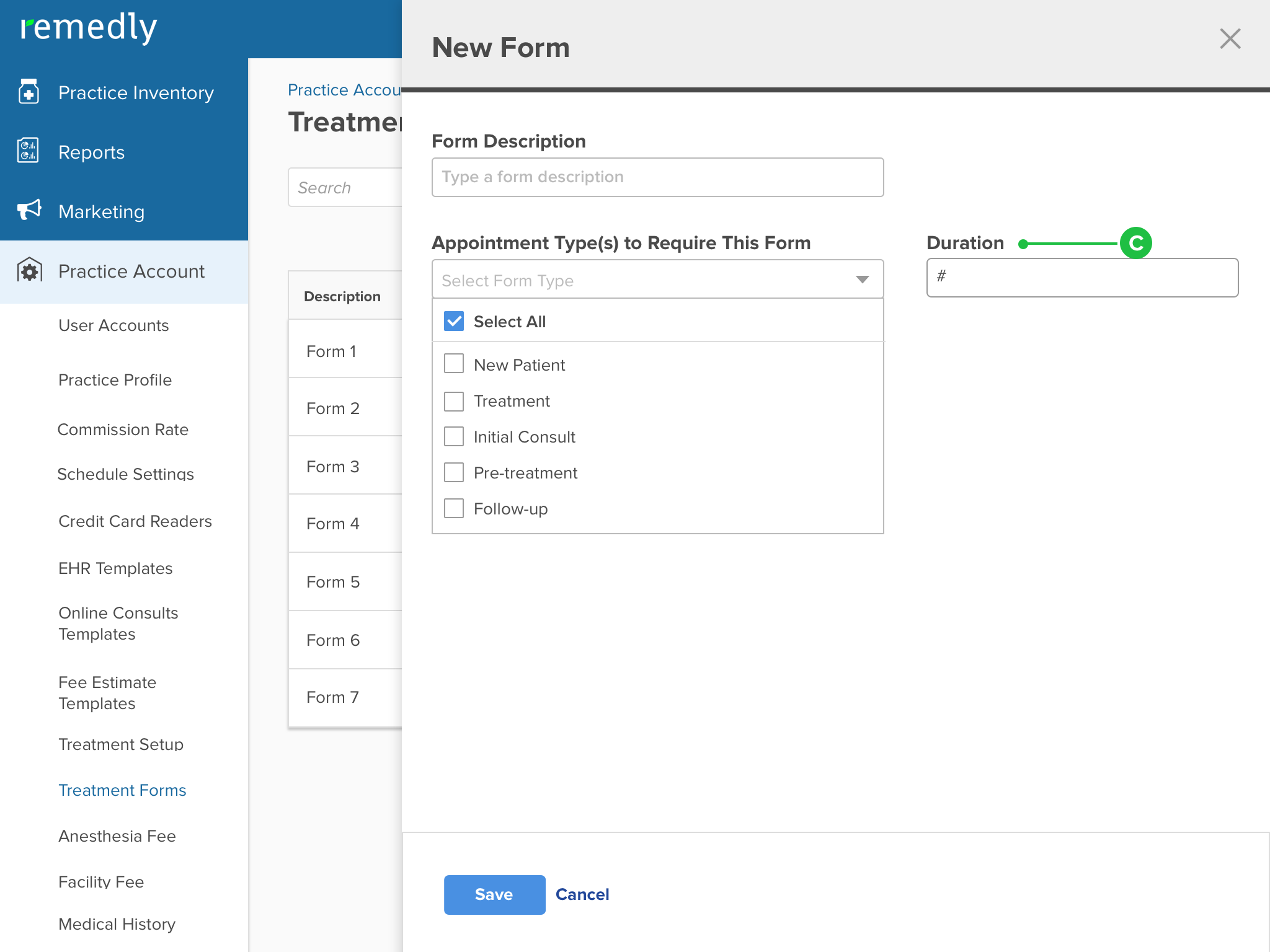
- Add a field for user to select how long signed form is valid for.
Treatment Form Edit Screen
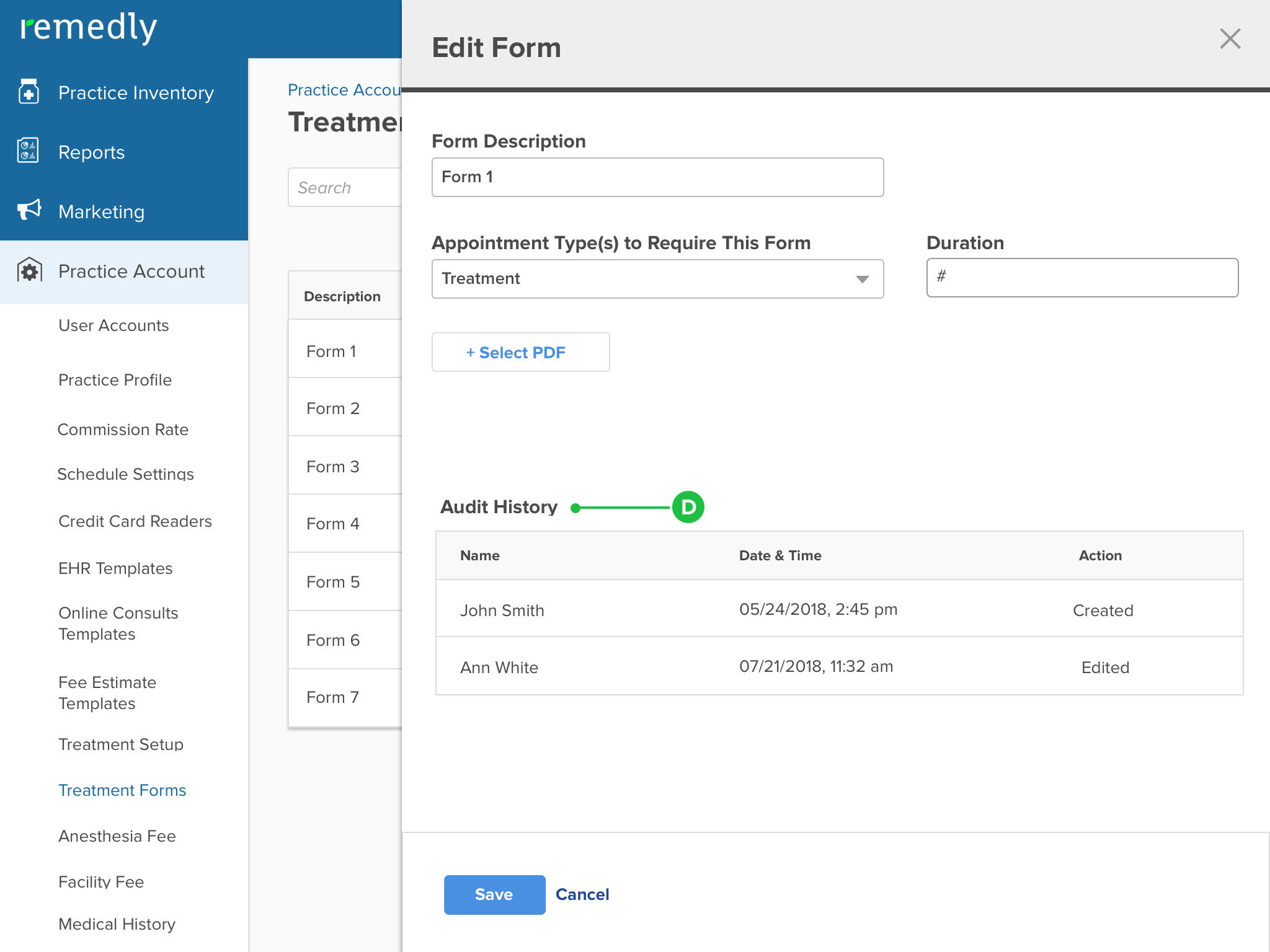
- Add ”Audit History Trails”
Usability Testing
To determine the level of efficiency of design, usability testing was conducted with the internal Customer Support and Billing team. The test was designed to establish ease of navigation within task flows, get clarity in content and call-to-action based on user understanding. Most observation feedback was gained from the participants to find what they liked the most, liked the least and their recommendations for improvement.